
Exporting Transcripts
Export your finished transcripts in various formats for different use cases.
Export Toolbar
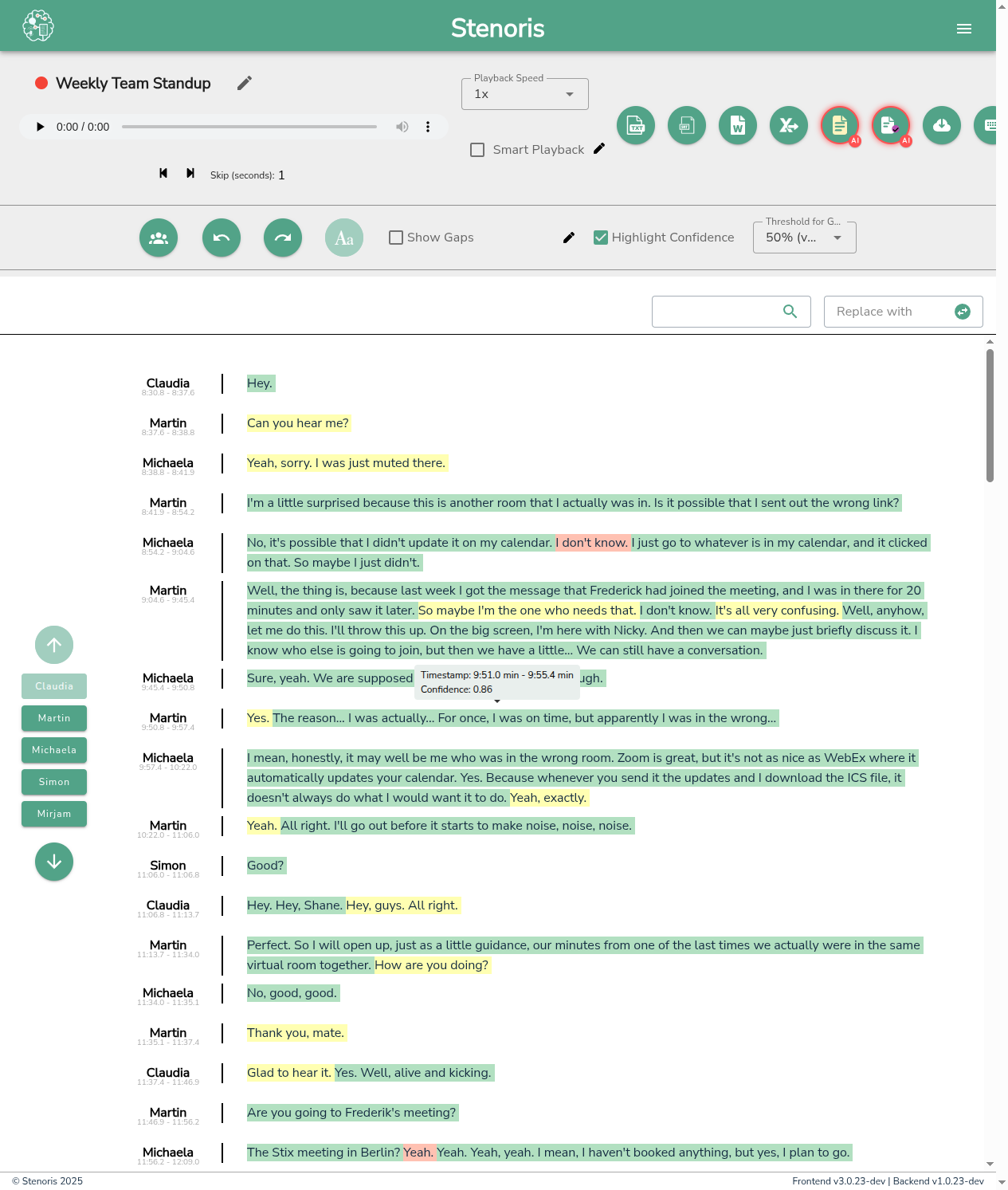
The export buttons are located in the editor toolbar. Each button opens a dialog with format-specific options.
Available Formats
Word (.docx)
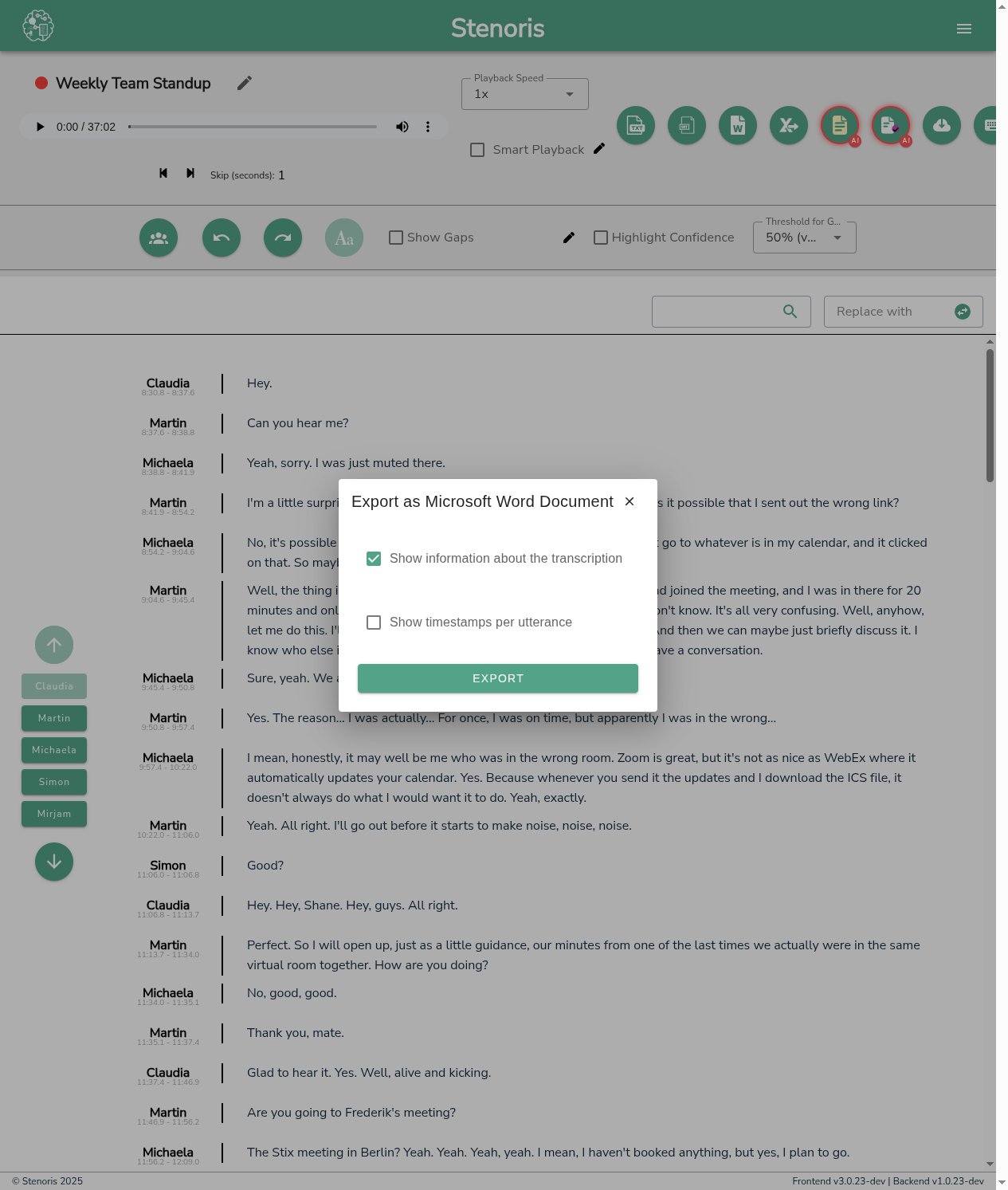
Export to Microsoft Word format with professional formatting and styling.
| Option | Description |
|---|---|
| Include Header | Add a header section with title, date, and participants |
| Speaker Style | Choose how speakers are displayed: bold, color-coded, or plain |
| Timestamps | Include timestamps (none, start of utterance, or inline) |
| Page Layout | Portrait or landscape orientation |
Best for: Formal documents, meeting records, legal transcripts, sharing with non-technical users.
Text (.txt)
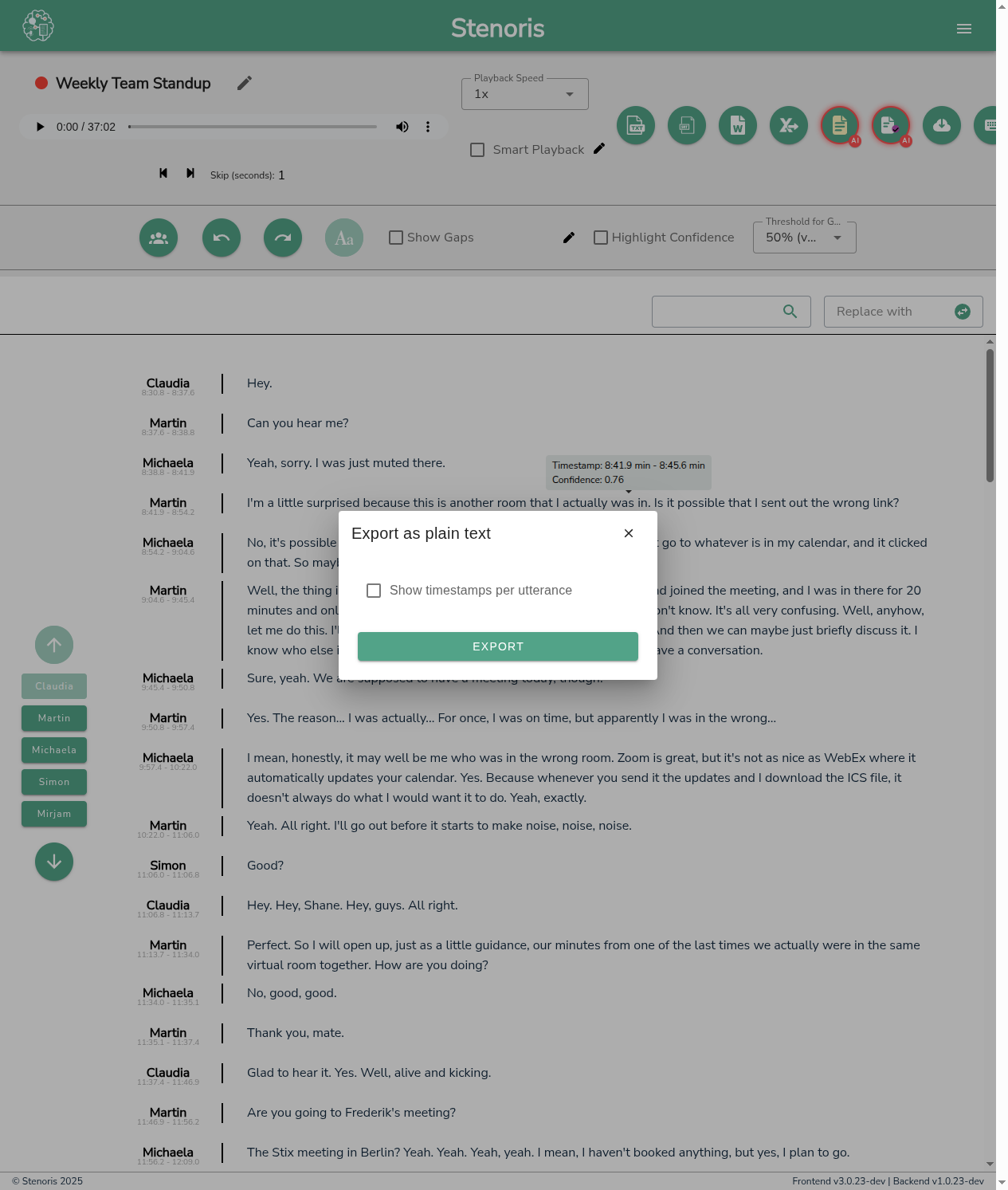
Export as plain text for maximum compatibility.
| Option | Description |
|---|---|
| Include Timestamps | Add timestamps before each utterance |
| Include Speaker Labels | Show speaker names before their text |
| Line Breaks | Choose between single or double line breaks between utterances |
Best for: Simple archives, copy-paste into other documents, processing with scripts.
SRT (Subtitles)
Export in SubRip subtitle format for video captioning.
| Option | Description |
|---|---|
| Max Characters per Line | Limit line length for readability (default: 42) |
| Max Lines per Subtitle | Number of lines per caption (default: 2) |
| Include Speaker Labels | Prefix subtitles with speaker names |
Best for: Adding captions to videos, YouTube uploads, accessibility compliance.
CSV (Spreadsheet)
Export structured data for analysis in spreadsheet applications.
| Column | Content |
|---|---|
| Start Time | Utterance start timestamp |
| End Time | Utterance end timestamp |
| Speaker | Speaker name or ID |
| Text | Transcribed content |
| Confidence | Average confidence score (optional) |
Best for: Data analysis, importing into databases, custom processing workflows.
AI Minutes
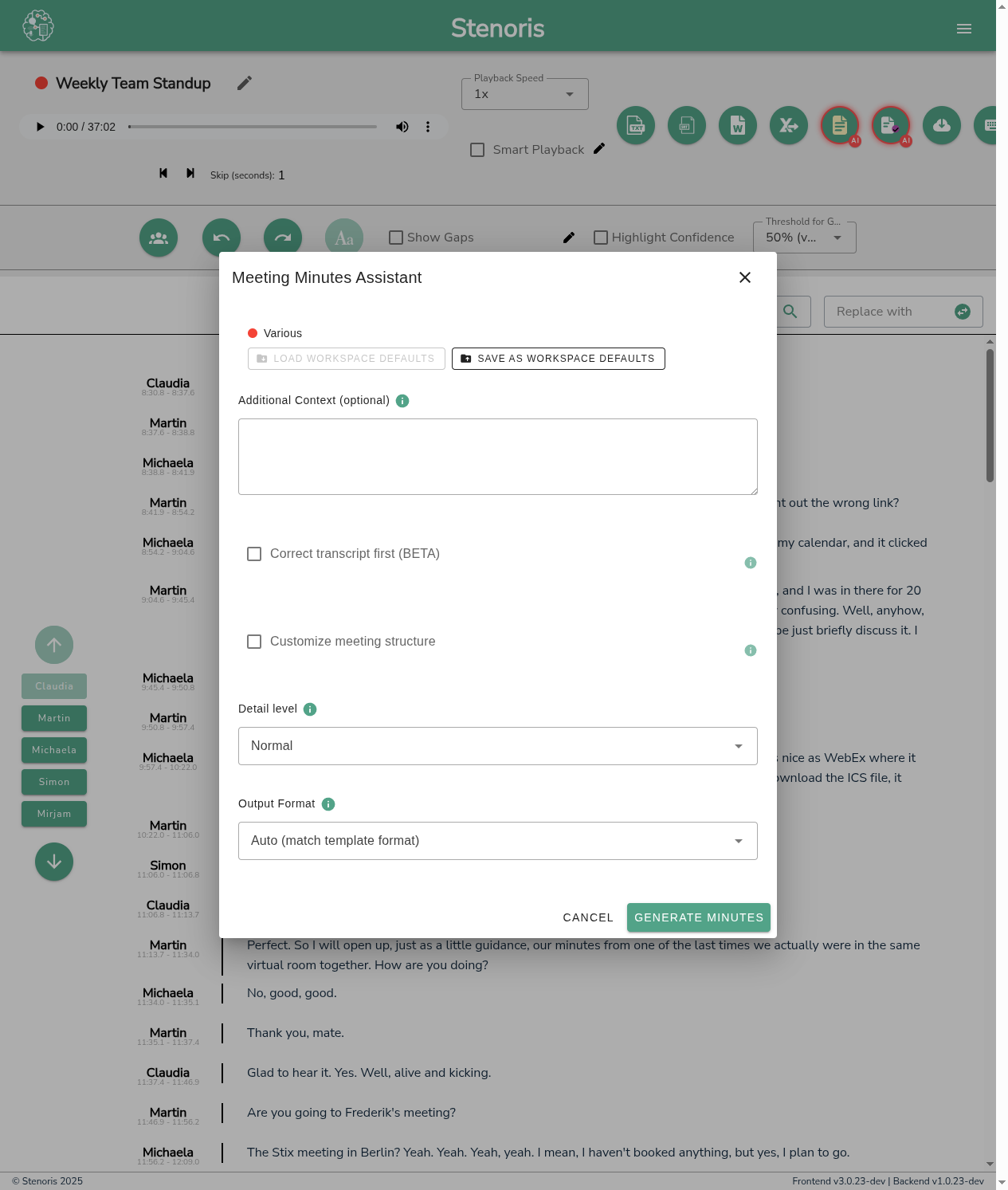
Generate intelligent meeting summaries with action items, decisions, and key discussions.
See AI Meeting Minutes for detailed documentation.
Best for: Meeting notes, executive summaries, action item tracking.
Export Process
- Open the Editor - Navigate to your transcript in the editor
- Click Export Button - Select the format you need from the toolbar
- Configure Options - Adjust format-specific settings in the dialog
- Download - Click the export/download button to save the file
TIP
Review and correct any transcription errors before exporting. Changes made in the editor are saved automatically.
Choosing the Right Format
| Use Case | Recommended Format |
|---|---|
| Sharing with colleagues | Word (.docx) |
| Archiving transcripts | Text (.txt) |
| Video subtitles | SRT |
| Data analysis | CSV |
| Meeting notes | AI Minutes |
| Legal records | Word (.docx) with timestamps |
| Accessibility | SRT or Word with speaker labels |
Tips
For Professional Documents
- Use Word export with Include Header enabled
- Select Bold speaker style for clear attribution
- Include timestamps if the transcript may be referenced against audio
For Video Subtitles
- Keep Max Characters per Line between 35-42 for readability
- Use 2 lines per subtitle maximum
- Disable speaker labels if speakers are visible on screen
For Data Processing
- Use CSV for programmatic access to transcript data
- Include confidence scores to filter low-quality segments
- Timestamps use ISO 8601 format for easy parsing
Related
- AI Minutes - Generate meeting summaries
- Editor - Editor overview
- Export Options Reference - Detailed export settings