Workspaces
Workspaces help you organize projects by client, topic, or any category you choose. They also store AI feature defaults for consistent results.
Creating a Workspace
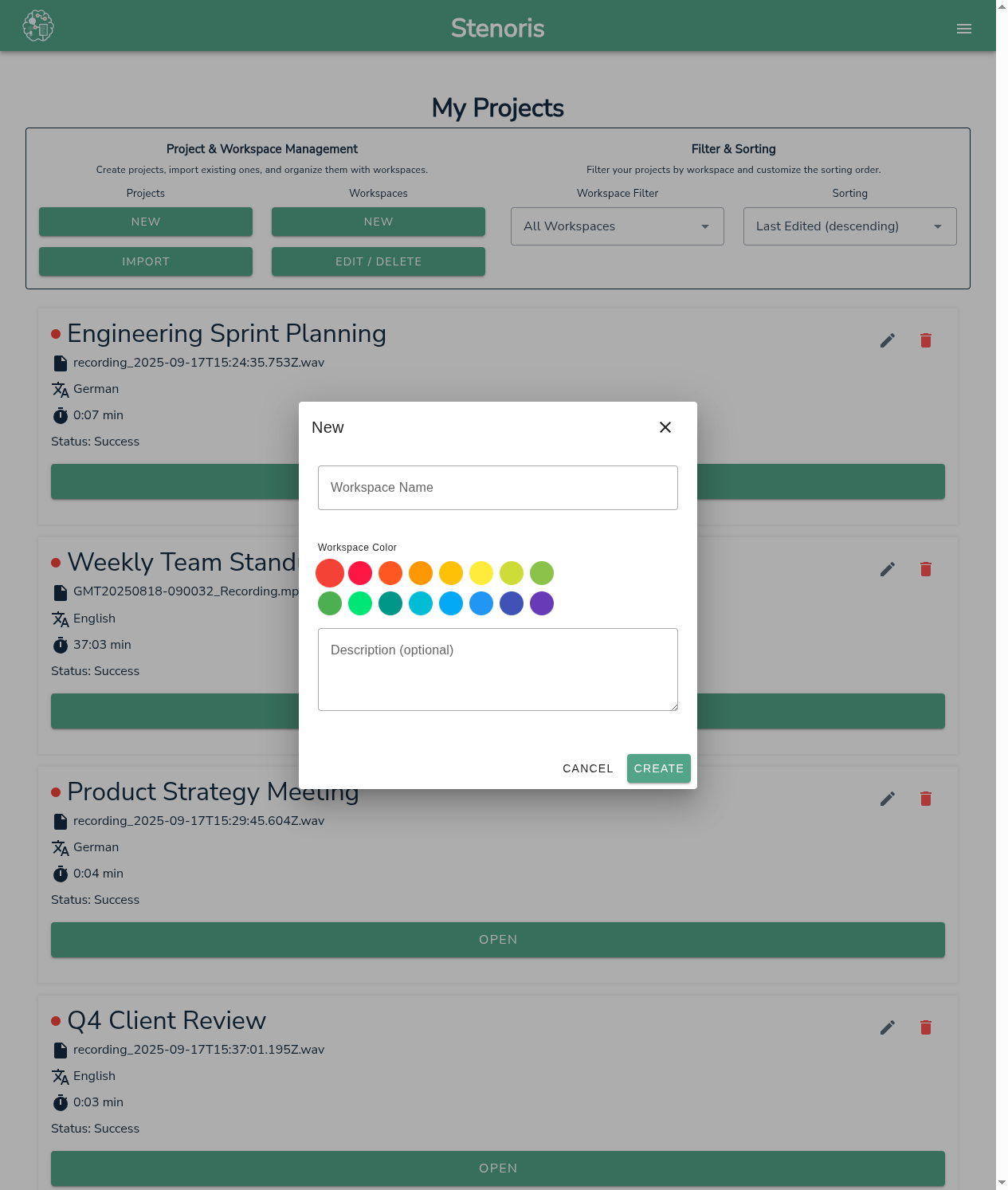
To create a new workspace:
- Click New under Workspaces on the dashboard
- Enter a workspace name
- Choose a color from the color picker
- Add an optional description
Naming tips:
- Use client or project names: "Acme Corp", "Q1 Marketing"
- Use meeting types: "Weekly Standups", "Board Meetings"
- Use departments: "Engineering", "Sales Calls"
Assigning Projects
During Creation
When creating a new transcription project, select a workspace from the dropdown to assign it immediately.
After Creation
- Open the transcript in the editor
- Click the workspace indicator (colored dot) in the toolbar
- Select a workspace from the dropdown
From the Dashboard
- Click the project menu (three dots)
- Select Move to Workspace
- Choose the target workspace
Filtering by Workspace
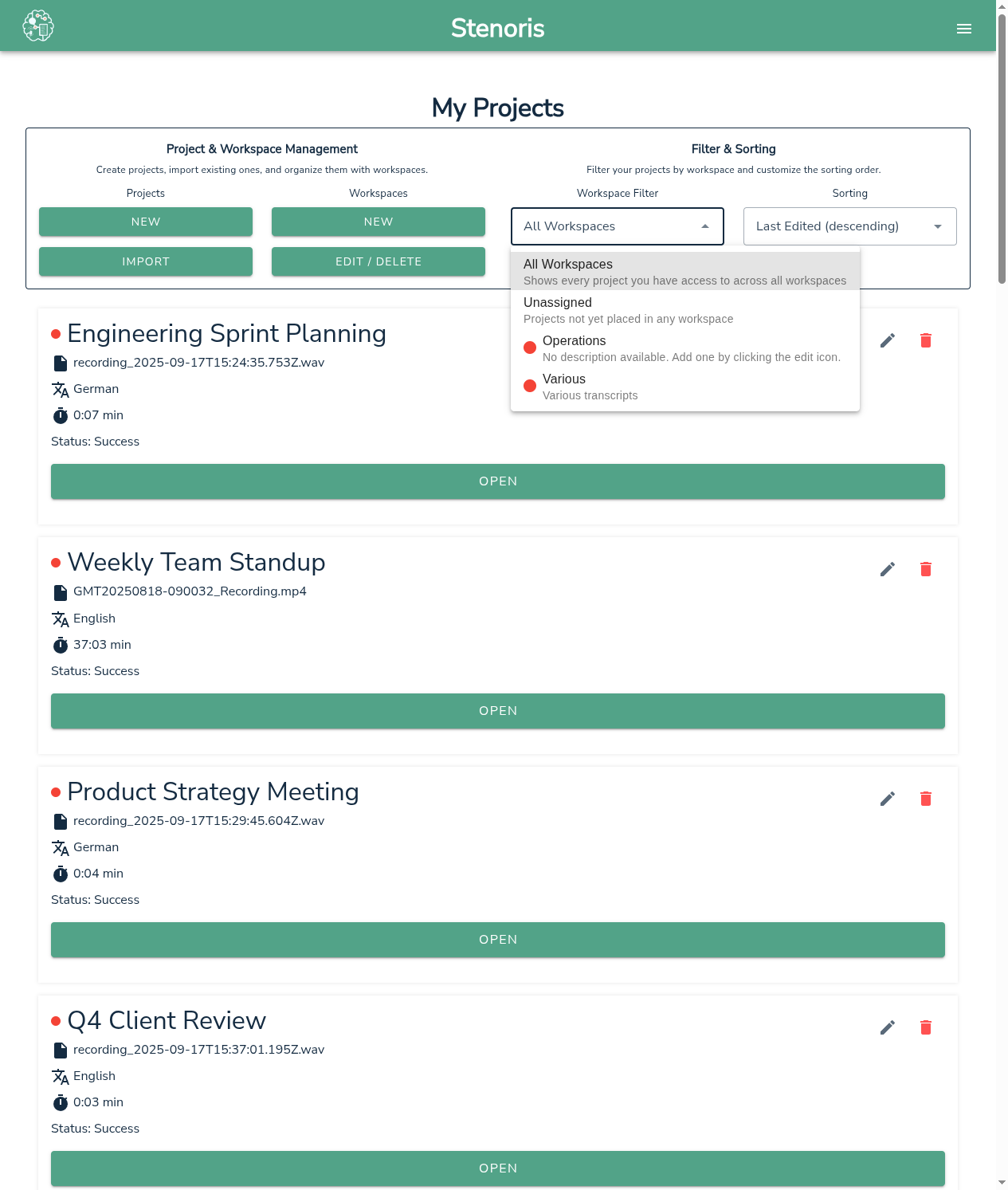
Use the workspace filter dropdown on the dashboard to view specific projects:
| Filter | Shows |
|---|---|
| All Workspaces | Every project you have access to |
| Unassigned | Projects not in any workspace |
| [Workspace Name] | Only projects in that workspace |
AI Defaults
Workspaces can store default settings for AI features, saving you time on recurring meetings or projects with consistent requirements.
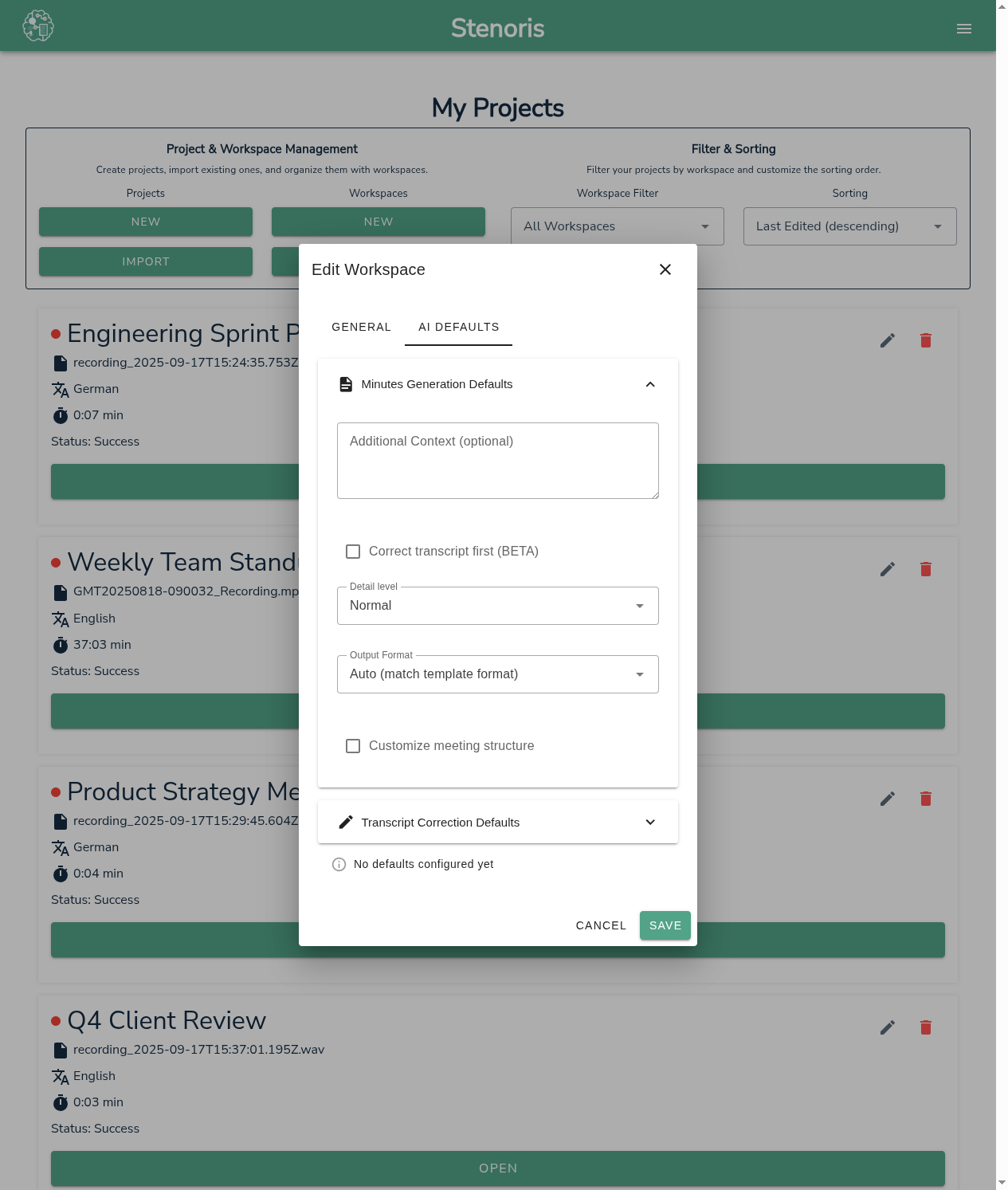
Setting Up AI Defaults
- Click Edit / Delete on a workspace
- Select the AI Defaults tab
- Configure settings for each AI feature
Minutes Generation Defaults
Store your preferred settings for meeting minutes:
| Setting | What to Configure |
|---|---|
| Context | Standard meeting description, participant list, terminology |
| Verbosity | Concise, Normal, or Detailed |
| Custom Template | Your organization's minutes format |
| Output Format | Word, Markdown, or Text |
Example context for recurring meetings:
Weekly engineering standup for the Platform team. Participants:
Alice (Tech Lead), Bob (Backend), Carol (Frontend), Dave (QA).
Technical terms: PR (pull request), CI (continuous integration),
spike (time-boxed research task).
Correction Defaults
Store context to improve transcript corrections:
| Setting | What to Configure |
|---|---|
| Context | Domain terminology, speaker names, common phrases |
Example correction context:
Legal deposition with Attorney Smith and witness Johnson.
Legal terms: deposition, affidavit, motion to compel, voir dire.
Case references: Smith v. Jones (2024), Docket #12345.
Using Saved Defaults
From the AI dialog (Minutes or Correction):
- Open the AI feature dialog
- If the transcript is assigned to a workspace with defaults, you'll see Load Defaults button
- Click to populate all fields with saved settings
- Modify if needed for this specific meeting
- Click Save as Defaults to update the workspace defaults
Workflow for recurring meetings:
- First meeting: Configure settings manually, click Save as Defaults
- Future meetings: Click Load Defaults, generate immediately
Assigning from AI Dialogs
You can assign a transcript to a workspace directly from the AI dialog:
- Look for the workspace dropdown at the top of the dialog
- Select a workspace to assign the transcript
- Once assigned, Load Defaults becomes available
This is useful when you forgot to assign during creation but want to use workspace defaults.
Best Practices
Organize by Recurring Pattern
Create workspaces for meetings that happen regularly with similar participants and context:
- "Monday Standups" - Same team, same format every week
- "Client: Acme" - All meetings with one client
- "Board Meetings" - Formal meetings with consistent template needs
Use Meaningful Context
Good context in AI defaults includes:
- Who: Participant names and roles
- What: Meeting purpose and typical topics
- Jargon: Industry or company-specific terms
Keep Templates Aligned
If you customize templates, ensure they request information the AI can extract:
✅ Good template sections:
- Action Items, Decisions, Discussion, Attendees, Next Steps
⚠️ May produce empty results:
- Risk Analysis, Budget Impact, Legal Review, Sentiment
See AI Minutes - Template Limitations for details.
Related
- AI Minutes - Generate meeting minutes
- AI Minutes - Using Workspace Defaults - Detailed workflow
- Dashboard - Managing projects