
Keyboard Shortcuts
Master these shortcuts to work more efficiently in the Stenoris editor.
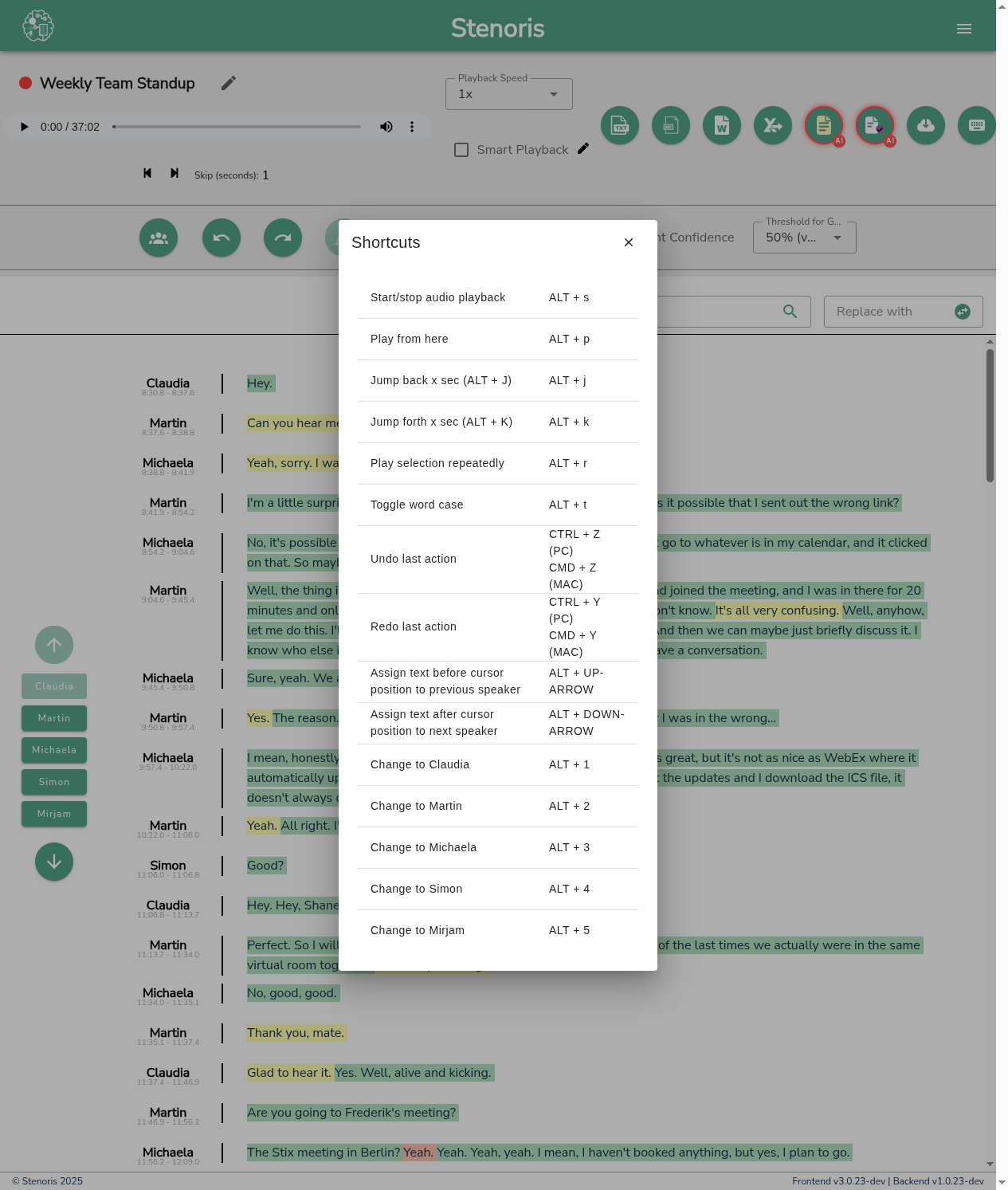
Press ? or click the keyboard icon in the editor toolbar to see all available shortcuts.
Playback Controls
| Shortcut | Action |
|---|---|
ALT + S | Start/stop audio playback |
ALT + P | Play from current cursor position |
ALT + J | Jump back X seconds |
ALT + K | Jump forward X seconds |
ALT + R | Play selection repeatedly |
Text Editing
| Shortcut | Action |
|---|---|
CTRL + Z | Undo last action |
CTRL + Y | Redo last action |
ALT + T | Toggle word case (lowercase/UPPERCASE/Title Case) |
Mac Users
Replace CTRL with CMD for Mac keyboard shortcuts.
Speaker Assignment
| Shortcut | Action |
|---|---|
ALT + ↑ | Assign text before cursor to previous speaker |
ALT + ↓ | Assign text after cursor to next speaker |
ALT + 1 | Change selected text to Speaker 1 |
ALT + 2 | Change selected text to Speaker 2 |
ALT + 3 | Change selected text to Speaker 3 |
ALT + 4 | Change selected text to Speaker 4 |
ALT + 5 | Change selected text to Speaker 5 |
| ... | Continue for additional speakers |
TIP
Speaker numbers correspond to the order speakers appear in the speaker panel on the left side of the editor.
Quick Reference
Most Used Shortcuts
| Shortcut | Action |
|---|---|
ALT + S | Play/Pause |
ALT + J | Jump back |
CTRL + Z | Undo |
ALT + 1-9 | Assign to speaker |
Workflow Tips
- Review mode: Use
ALT + Sto play, click words to seek, useALT + Jto replay sections - Correction mode: Enable Smart Playback so audio pauses when you type
- Speaker fixing: Select text, then press
ALT + [number]to reassign - Unclear audio: Select the word, press
ALT + Rto loop until you hear it clearly
Efficiency Tips
Building Speed
- Start by learning just the playback shortcuts (
ALT + S,ALT + J,ALT + K) - Add speaker shortcuts once playback feels natural
- Practice with a short transcript until shortcuts become automatic
Two-Hand Technique
- Left hand on ALT key area for shortcuts
- Right hand on mouse for clicking words and selecting text
This allows you to control playback while navigating the transcript without moving your hands.
When to Use Each Shortcut
| Task | Best Shortcut |
|---|---|
| Quick spot check | ALT + P (play from cursor) |
| Detailed review | ALT + S with Smart Playback enabled |
| Unclear word | ALT + R (loop selection) |
| Wrong speaker | ALT + [number] |
| Navigate quickly | Click words + ALT + J to replay |
Related
- Audio Playback - Playback features
- Editor - Editor overview
- Editor Settings - Configure editor behavior