
Editor Settings Reference
Detailed documentation of all editor settings and options available in the Stenoris transcript editor.
Playback Settings
Playback Speed
Control the audio playback rate for easier transcription review.
Options: 0.5x, 0.75x, 1x (default), 1.25x, 1.5x, 2x
Use slower speeds for dense content or heavily accented speech. Use faster speeds when reviewing familiar content.
Skip Duration
Configure how many seconds the forward/back buttons skip.
Default: 1 second
Adjust this value to match your editing workflow.
Smart Playback
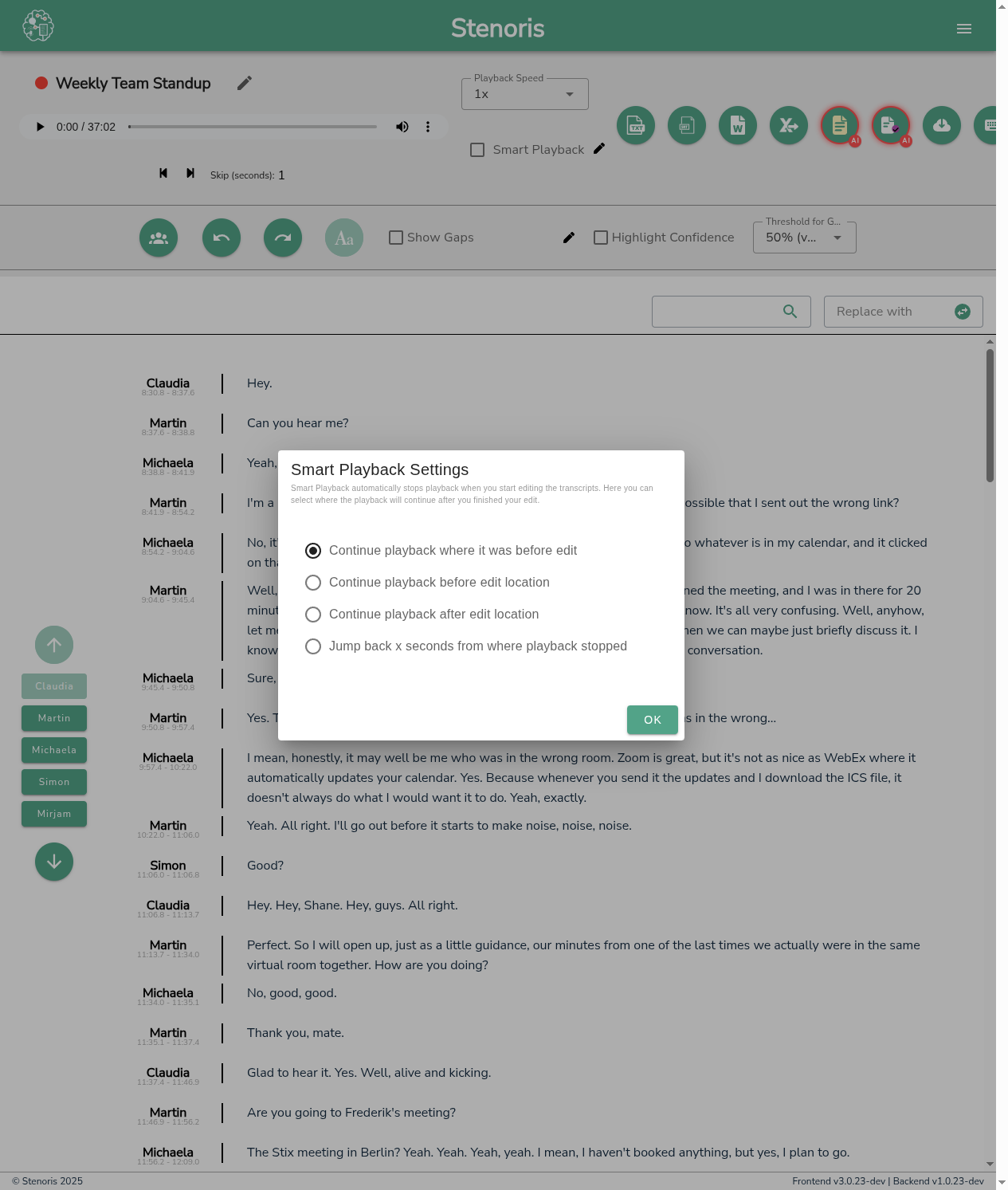
Smart Playback automatically stops audio when you start editing and resumes when you finish. Click the settings icon next to Smart Playback to configure:
| Option | Description |
|---|---|
| Continue where stopped | Resume playback from where it was before your edit |
| Continue before edit | Resume from a position before where you made the edit |
| Continue after edit | Resume from after the edit location |
| Jump back X seconds | Jump back a configurable number of seconds from where playback stopped |
Confidence Highlighting
The editor can highlight words based on transcription confidence to help you focus on potentially inaccurate portions.
Enable Confidence Highlighting
Check Highlight Confidence to enable color-coded confidence indicators.
Confidence Threshold
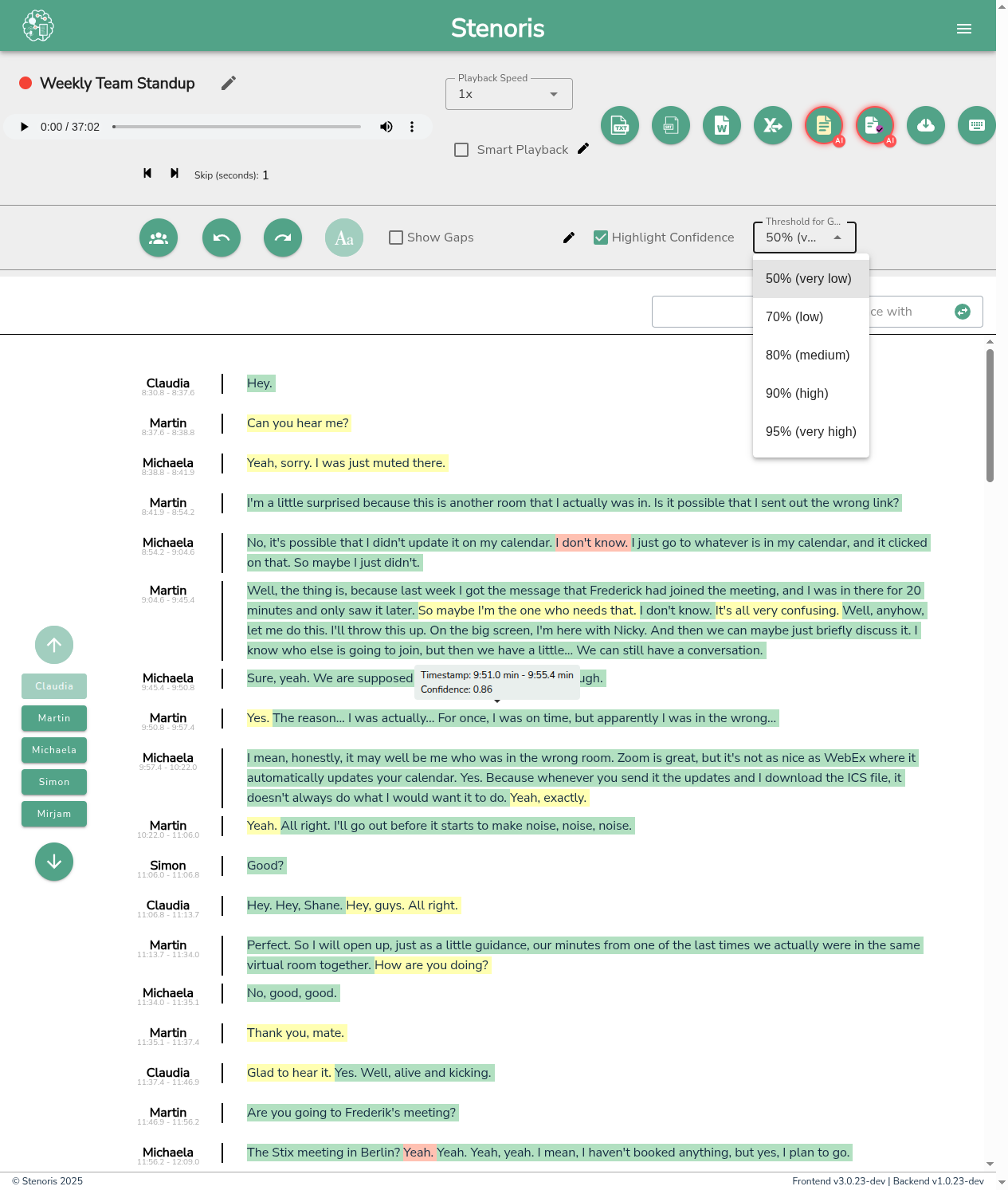
Set the threshold that determines when words are highlighted green (high confidence) vs yellow/red (lower confidence).
| Threshold | Description |
|---|---|
| 50% (very low) | Only words below 50% confidence appear red - shows almost everything as green |
| 70% (low) | Words below 70% confidence highlighted - relaxed threshold |
| 80% (medium) | Balanced threshold for most transcripts |
| 90% (high) | Stricter threshold - more words highlighted for review |
| 95% (very high) | Most strict - highlights nearly all words for careful review |
Confidence Colors
- Green background: Word confidence is above your threshold
- Yellow background: Word confidence is moderately below threshold
- Red background: Word confidence is significantly below threshold
TIP
Start with 80% (medium) threshold and adjust based on your transcript quality. Lower the threshold if too many words are highlighted; raise it if errors are being missed.
Gap Settings
Gaps are time spans in a transcript without text. These can be pauses where no one speaks, time spans where a transcript is missing, or segments of parallel speech.
Show Gaps
Check Show Gaps to display gap markers in the transcript.
Gap Display Settings
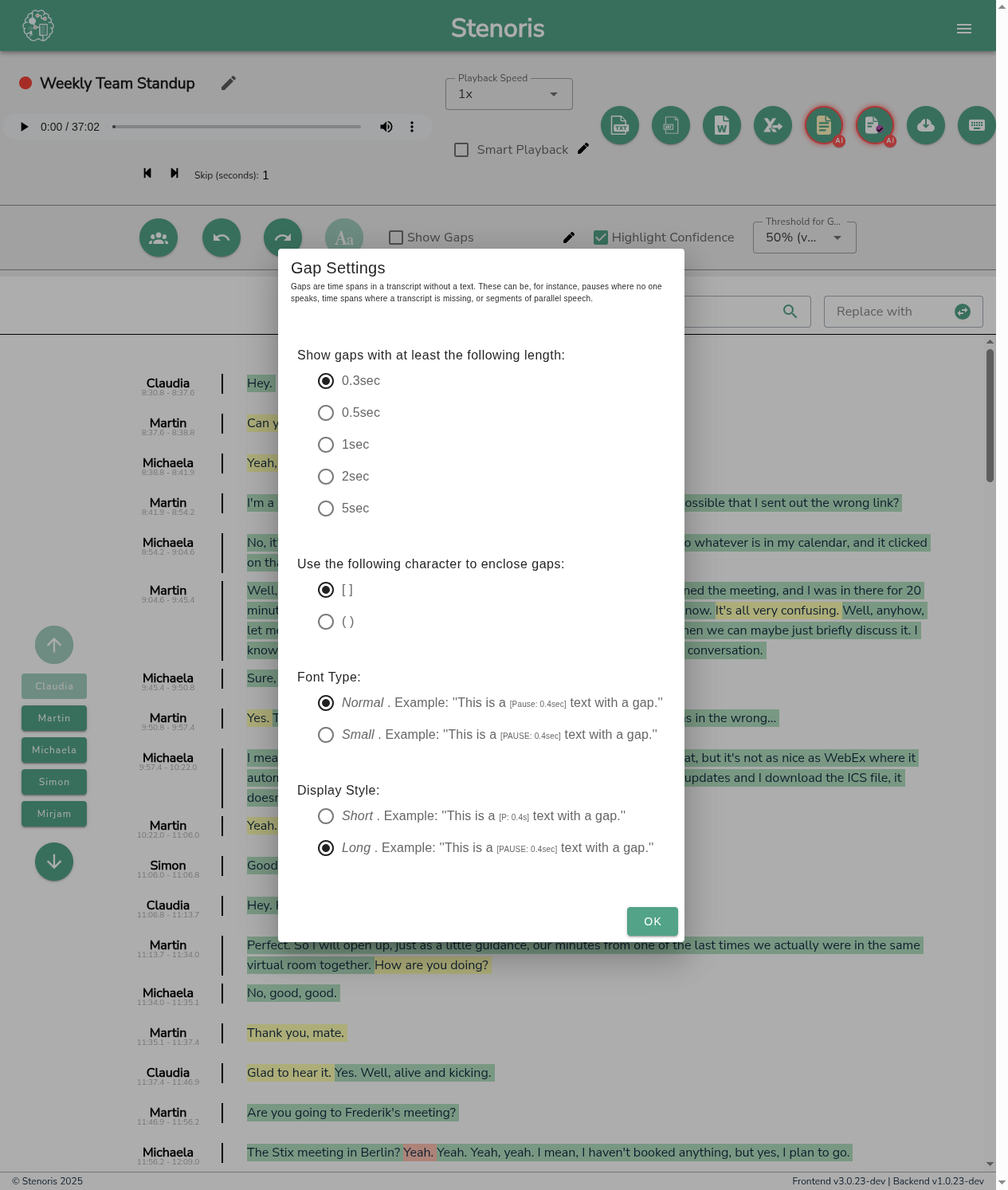
Click the pencil icon next to "Show Gaps" to configure gap display:
Minimum Gap Length
Show gaps with at least the following duration:
- 0.3 seconds
- 0.5 seconds
- 1 second
- 2 seconds
- 5 seconds
Gap Bracket Style
Choose the character to enclose gaps:
[ ]- Square brackets (default)( )- Parentheses
Font Type
- Normal - Standard size, e.g.,
[Pause: 0.4sec] - Small - Smaller text, e.g.,
[PAUSE: 0.4sec]
Display Style
- Short - Abbreviated format, e.g.,
[P: 0.4s] - Long - Full format, e.g.,
[PAUSE: 0.4sec]
Gap Editor
Click on any gap in the transcript to open the Gap Editor dialog, which allows you to:
- Play the gap - Listen to the audio during the gap period
- Change gap type - Classify what kind of gap it is
- Resolve the gap - Add transcript text to fill the gap
Gap Types
| Type | Description |
|---|---|
| Pause (no speech) | Silence in the audio - no one is speaking |
| No Transcript | A single speaker is talking but wasn't transcribed |
| Parallel Speech | Multiple speakers talking simultaneously |
INFO
Changing the gap type helps document why certain portions weren't transcribed and can improve future processing.
Speaker Panel
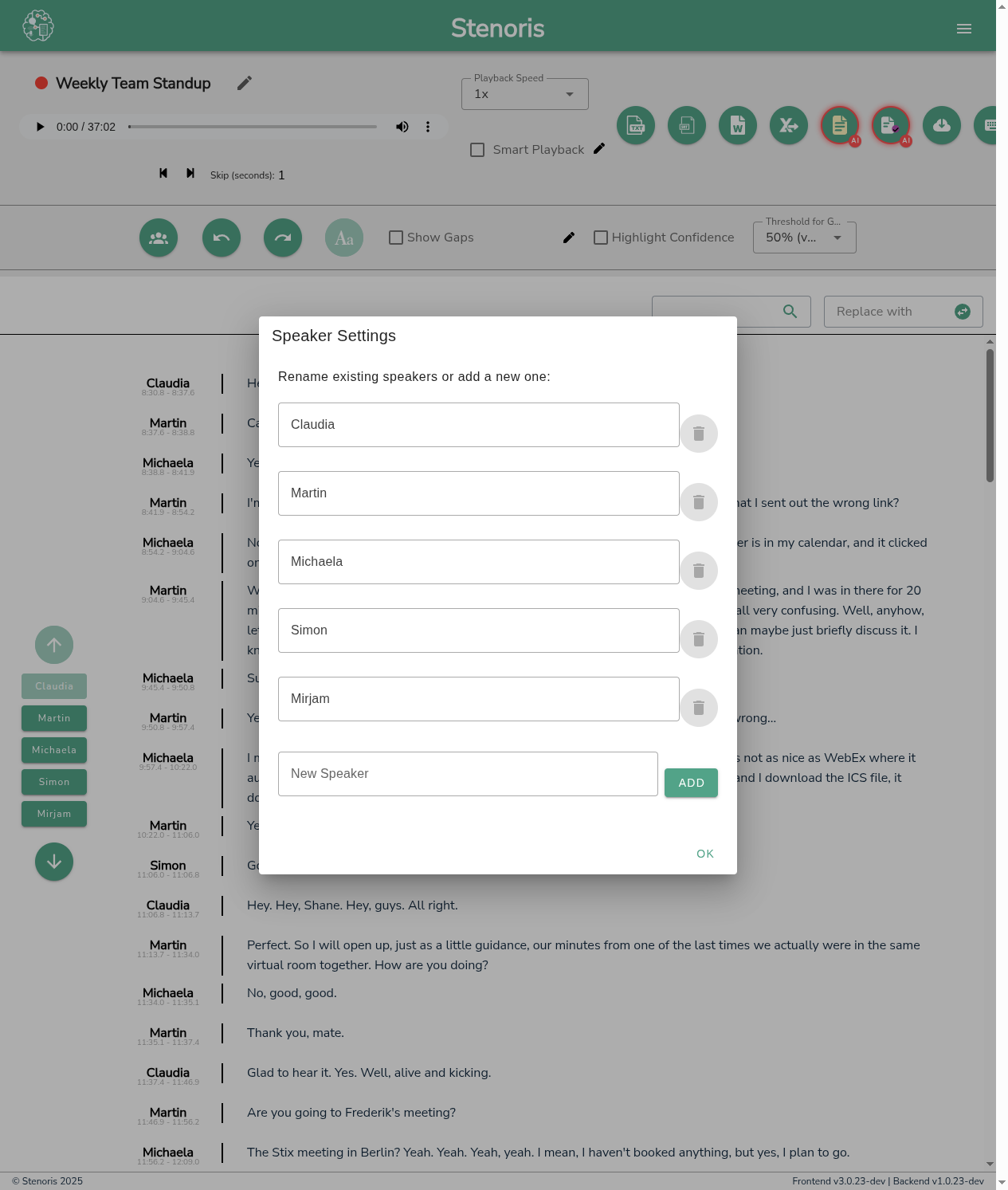
The speaker panel on the left side shows all detected speakers with color-coded buttons:
- Click a speaker name to assign selected text to that speaker
- Use keyboard shortcuts ALT+1 through ALT+9 to quickly assign speakers
- Edit speaker names by clicking on them in an utterance header
Related
- Editor Guide - Editor overview
- Audio Playback - Playback controls
- Keyboard Shortcuts - Speed up editing