
Audio Playback
The audio player is integrated into the editor for seamless transcript review and editing.
Player Controls
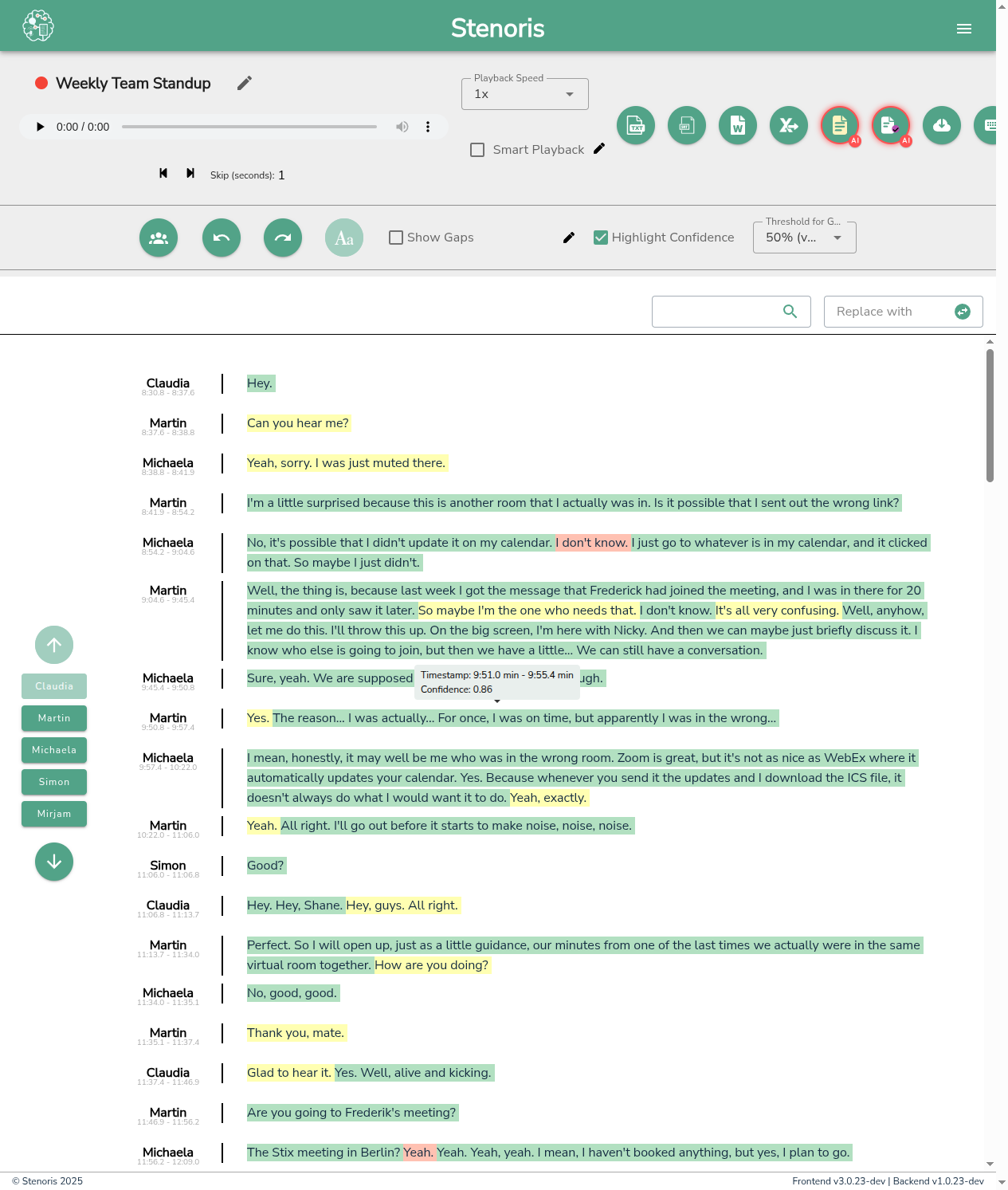
The audio player toolbar at the top of the editor provides:
Basic Controls
| Control | Function |
|---|---|
| Play/Pause | Start or stop audio playback |
| Skip Back | Jump backward by the configured skip duration |
| Skip Forward | Jump forward by the configured skip duration |
| Volume | Adjust audio volume |
| Progress Bar | Click anywhere to seek to that position |
Skip Duration
The Skip (seconds) field lets you configure how many seconds the skip buttons move. Default is 1 second. Increase this for longer recordings or when doing quick reviews.
Playback Speed
Use the Playback Speed dropdown to adjust how fast the audio plays:
| Speed | Best For |
|---|---|
| 0.5x - 0.75x | Dense technical content, heavy accents, or detailed corrections |
| 1x | Normal playback for initial review |
| 1.25x - 1.5x | Quick reviews of familiar content |
| 2x | Rapid scanning to find specific sections |
TIP
Slower speeds make it easier to catch transcription errors without constantly pausing.
Smart Playback
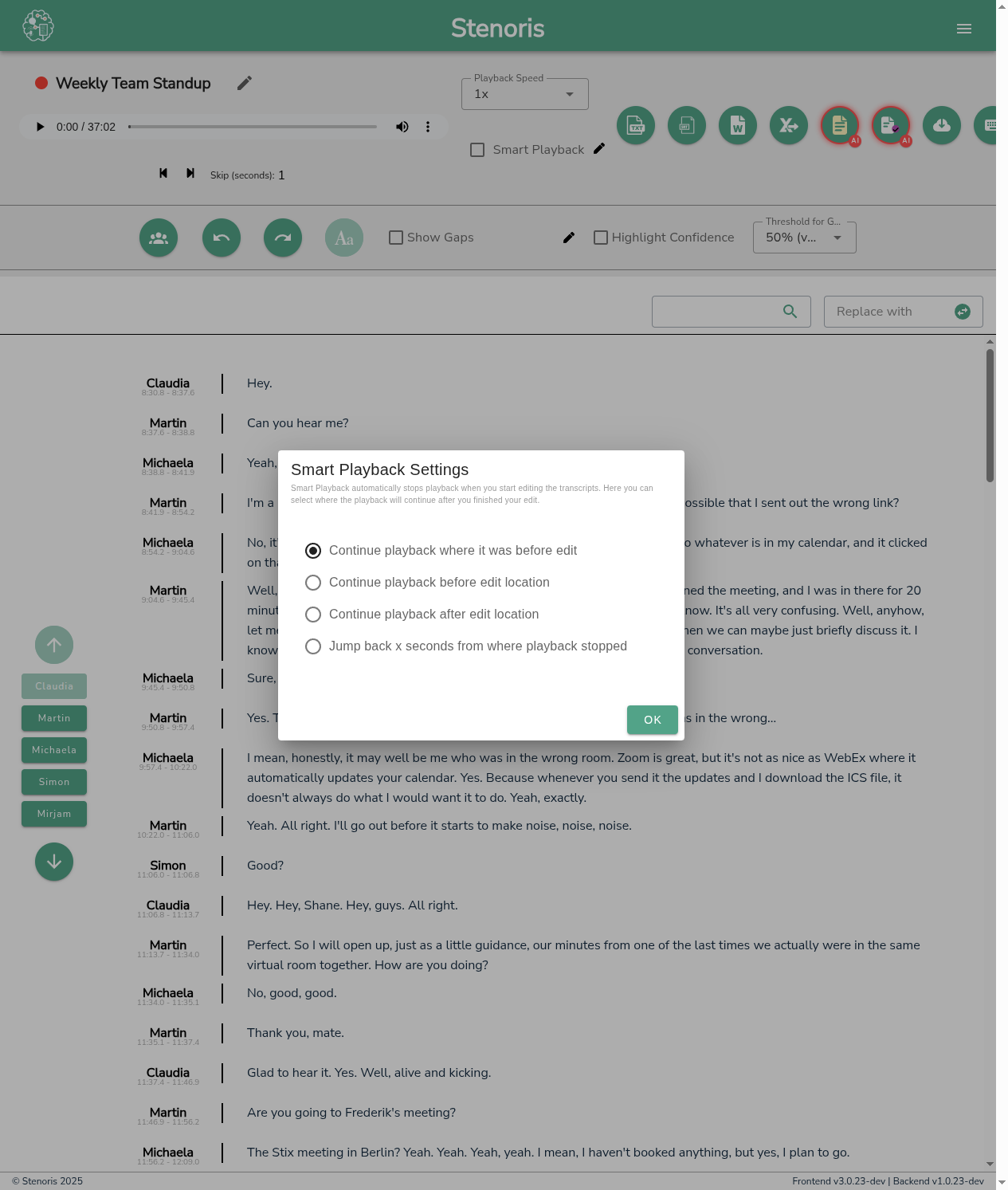
Smart Playback automatically stops audio when you start typing and resumes when you finish editing. Enable it by checking the Smart Playback checkbox.
Click the settings icon to configure where playback resumes after editing:
| Option | Description |
|---|---|
| Continue where stopped | Resume from where playback was before you started editing |
| Continue before edit | Resume from a position just before your edit location |
| Continue after edit | Resume from after where you made the edit |
| Jump back X seconds | Jump back a specific number of seconds from where playback stopped |
Click-to-Seek
Click any word in the transcript to jump the audio to that position. The clicked word and its surrounding context will be highlighted.
This feature is especially useful for:
- Verifying uncertain words
- Finding specific sections quickly
- Reviewing speaker transitions
Loop Playback
Select a portion of text, then use ALT + R to play that selection repeatedly. This is helpful when:
- Deciphering unclear speech
- Verifying proper names or technical terms
- Reviewing overlapping speakers
Keyboard Shortcuts
| Shortcut | Action |
|---|---|
ALT + S | Start/stop audio playback |
ALT + P | Play from current cursor position |
ALT + J | Jump back X seconds |
ALT + K | Jump forward X seconds |
ALT + R | Play selection repeatedly |
See Keyboard Shortcuts for the complete list.
Related
- Keyboard Shortcuts - Full shortcuts reference
- Editor Settings - Configure playback options
- Editor - Editor overview