
AI Meeting Minutes
Transform your transcripts into structured meeting minutes automatically.
How It Works
Stenoris uses an advanced 8-step AI pipeline to analyze your transcript and extract:
- Action items with owners and deadlines
- Decisions made during the meeting
- Key discussions and topics
- Attendees and participants
- Follow-ups and next steps
The pipeline verifies extracted information against the source transcript to ensure accuracy and prevent hallucinations.
Getting Started
- Open your transcript in the editor
- Click the AI Minutes button in the toolbar
- Configure options as needed
- Click Generate Minutes
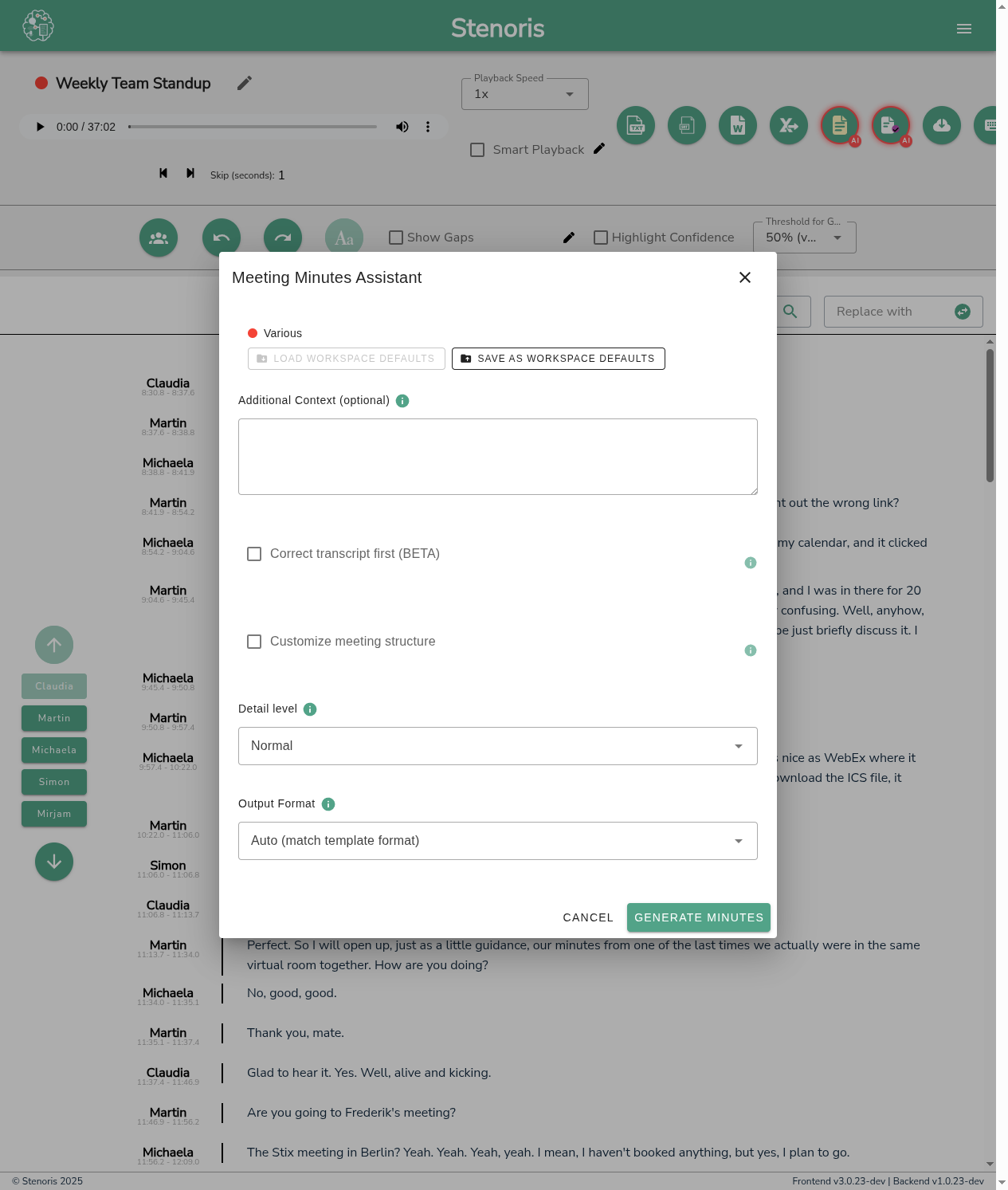
Options
Context Field
The context field helps the AI understand your meeting better. Good context leads to more accurate and relevant minutes.
What to include:
| Information | Example | Why It Helps |
|---|---|---|
| Meeting type | "Weekly engineering standup" | Sets expectations for content type |
| Organization | "Acme Corp product team" | Helps interpret internal references |
| Participants | "John (PM), Sarah (Dev Lead), Mike (QA)" | Improves speaker attribution |
| Topic/Project | "Q1 roadmap planning for mobile app" | Focuses extraction on relevant items |
| Terminology | "Sprint = 2-week cycle, EPD = Engineering Product Design" | Clarifies jargon |
Context Examples by Meeting Type
Engineering Standup:
Daily standup for the Backend team. Participants: Alice (Tech Lead),
Bob (Senior Dev), Carol (Junior Dev). Discuss: yesterday's progress,
today's plans, blockers. Terms: PR (pull request), CI (continuous
integration), k8s (Kubernetes), hotfix (urgent production fix).
Client Project Meeting:
Project status meeting with Acme Corp. Internal: John (PM), Sarah (Dev).
Client: Mike (Product Owner), Lisa (Stakeholder). Project: E-commerce
redesign, Phase 2. Milestones: Beta launch March 15, Go-live April 1.
Sales Call:
Discovery call with potential customer. Our team: Alex (Sales Rep),
Jordan (Solutions Engineer). Prospect: TechStart Inc, speaking with
their CTO and Head of Operations. Product: Stenoris Enterprise plan.
Focus: their transcription needs and compliance requirements.
Board Meeting:
Q4 Board of Directors meeting. Board members: Dr. Smith (Chair),
Johnson (CFO), Williams (Independent). Management: CEO, COO, CFO.
Topics: Q4 financials, 2025 budget approval, executive compensation.
Medical/Legal (Confidential):
Patient consultation with Dr. Martinez (Cardiologist) and patient
John Doe. Medical terms: echocardiogram, ejection fraction, beta
blockers, ACE inhibitors. Note: HIPAA-compliant handling required.
Interview:
Technical interview for Senior Developer position. Interviewers:
Sarah (Hiring Manager), Tom (Team Lead). Candidate: Alex Chen.
Focus areas: system design, Python/Django experience, team fit.
TIP
Keep context concise but informative. 2-4 sentences is usually enough. The AI doesn't need your company's entire history—just enough to understand this specific meeting.
Verbosity
Control how detailed your meeting minutes will be:
| Level | Best For | Output Style |
|---|---|---|
| Concise | Executive summaries, quick updates | Bullet points only, key decisions |
| Normal | Standard meeting notes | Balanced detail, context for decisions |
| Detailed | Legal records, thorough documentation | Full context, extended discussions |
Custom Templates
Customize the structure of your minutes using markdown templates.
Default sections the AI can fill:
- Summary / Overview
- Attendees / Participants
- Action Items (with owners, deadlines)
- Decisions (with rationale)
- Discussion Points / Key Topics
- Next Steps / Follow-ups
Template Examples
Executive Summary Format:
# {{title}} - Executive Summary

**Date:** {{date}}
**Participants:** {{attendees}}

## Key Takeaways
{{summary}}

## Decisions
{{decisions}}

## Action Items
| Owner | Task | Due Date |
|-------|------|----------|
{{action_items}}
Standup/Scrum Format:
# Daily Standup - {{date}}

**Team:** {{attendees}}

## Updates by Person
{{discussion}}

## Blockers
{{blockers}}

## Action Items
{{action_items}}
Client Meeting Format:
# Client Meeting Minutes

**Client:** [Client Name]
**Date:** {{date}}
**Attendees:** {{attendees}}

## Meeting Purpose
{{summary}}

## Discussion Points
{{discussion}}

## Agreed Actions
{{action_items}}

## Decisions & Approvals
{{decisions}}

## Next Steps
{{next_steps}}

---
*Minutes prepared by Stenoris AI*
Board Meeting Format:
# Board Meeting Minutes

**Date:** {{date}}
**Present:** {{attendees}}
**Absent:** [List absent members]

## Call to Order
Meeting called to order at [time].

## Agenda Items

### {{topic_1}}
{{discussion_1}}

**Motion:** {{decision_1}}
**Outcome:** Approved / Not Approved

## Action Items
{{action_items}}

## Next Meeting
{{next_steps}}

## Adjournment
Meeting adjourned at [time].
Simple Bullet Format:
# {{title}}

{{date}} | {{attendees}}

**Summary:** {{summary}}

**Decisions:**
{{decisions}}

**To Do:**
{{action_items}}

**Next:** {{next_steps}}
Template Tips
- Use
{{placeholder}}syntax for dynamic content - The AI maps extracted content to matching section names
- Keep section headers clear: "Action Items" works better than "Things People Need To Do"
- Tables work well for action items with multiple columns
Template Limitations
Templates work best when they align with what the AI pipeline extracts. Sections requesting information outside the extraction scope may result in empty content:
- ✅ Works well: Action Items, Decisions, Discussion, Attendees, Next Steps, Summary, Blockers
- ⚠️ May not work: Risk Assessment, Budget Analysis, Sentiment Analysis, Legal Review, KPIs
The AI extracts meeting elements (actions, decisions, discussions) and organizes them into your template structure. It cannot perform analysis or generate content not present in the transcript.
Output Format
| Format | Best For |
|---|---|
| Auto | Matches template format (recommended) |
| Word (.docx) | Sharing, printing, formal distribution |
| Markdown | Technical teams, further processing |
| Text | Simple archives, email pasting |
Using Workspace Defaults
Save time by storing your preferred settings in a workspace:
- Save defaults: Configure options in the dialog, click Save as Defaults
- Load defaults: Open the dialog, click Load Defaults to apply saved settings
- Assign transcript: Use the workspace dropdown to assign the current transcript
This is especially useful for recurring meetings where context, templates, and verbosity stay the same.
See Workspaces - AI Defaults for setup instructions.
Progress Tracking
During generation, you'll see:
- Progress bar showing overall completion
- Step indicator (e.g., "Step 3 of 8: Extracting elements")
- Status messages explaining current activity
The 8-step pipeline typically completes in 30-90 seconds depending on transcript length.
Troubleshooting
Empty Sections
Cause: The meeting didn't contain that type of information, or the template requested unsupported content.
Fix:
- Check if the transcript actually contains action items, decisions, etc.
- Use a template that matches the meeting content
- Add context to help the AI recognize relevant content
Missing Action Items or Owners
Cause: Action items weren't explicitly stated, or owners weren't mentioned by name.
Fix:
- Add participant names to the context field
- In future meetings, be explicit: "John will handle the deployment by Friday"
Processing Errors
Cause: Usually server load or transcript issues.
Fix:
- Wait a moment and try again
- For very long transcripts (>2 hours), consider splitting
- Check that the transcript has actual content (not empty)
Related
- Workspaces - Save AI defaults per workspace
- Exporting - Other export formats