
Workspaces Reference
Detailed documentation of workspace settings and AI defaults.
Workspace Properties
Name
Display name for the workspace.
Tips:
- Use descriptive names (client name, project type)
- Keep names concise for display in filters
Color
Visual identifier for the workspace.
Uses:
- Dashboard filtering
- Project list badges
- Quick visual identification
Description
Optional longer description of the workspace purpose.
AI Defaults
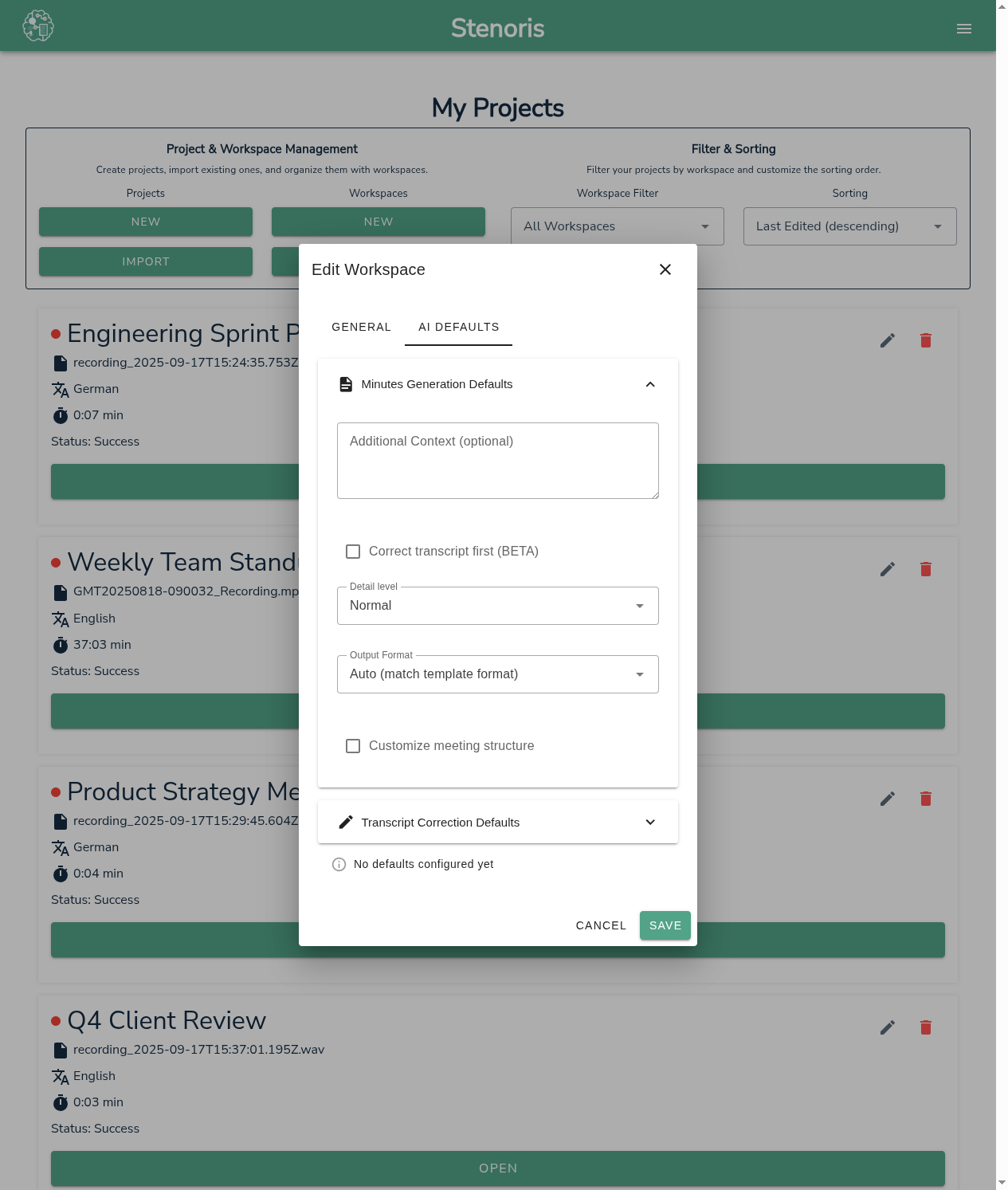
Save your preferred AI settings per workspace for consistent results.
How It Works
- Configure AI tool settings in dialog
- Click "Save as Workspace Defaults"
- Next time, click "Load Defaults" to restore
Minutes Generation Defaults
Settings that can be saved:
| Setting | What It Stores |
|---|---|
| Context | Background information text |
| Verbosity | Concise/Normal/Detailed |
| Output Format | Word/Markdown/Text/Auto |
| Custom Template | Template text if customized |
Transcript Correction Defaults
Settings that can be saved:
| Setting | What It Stores |
|---|---|
| Context | Domain terms and context |
Assigning Transcripts
From Dashboard
- Select transcript
- Choose workspace from dropdown
- Changes take effect immediately
From AI Dialogs
- Some AI dialogs allow workspace assignment
- Useful for applying defaults while working
Bulk Assignment
- Select multiple transcripts
- Choose "Assign to Workspace" action
- Select target workspace
Filtering by Workspace
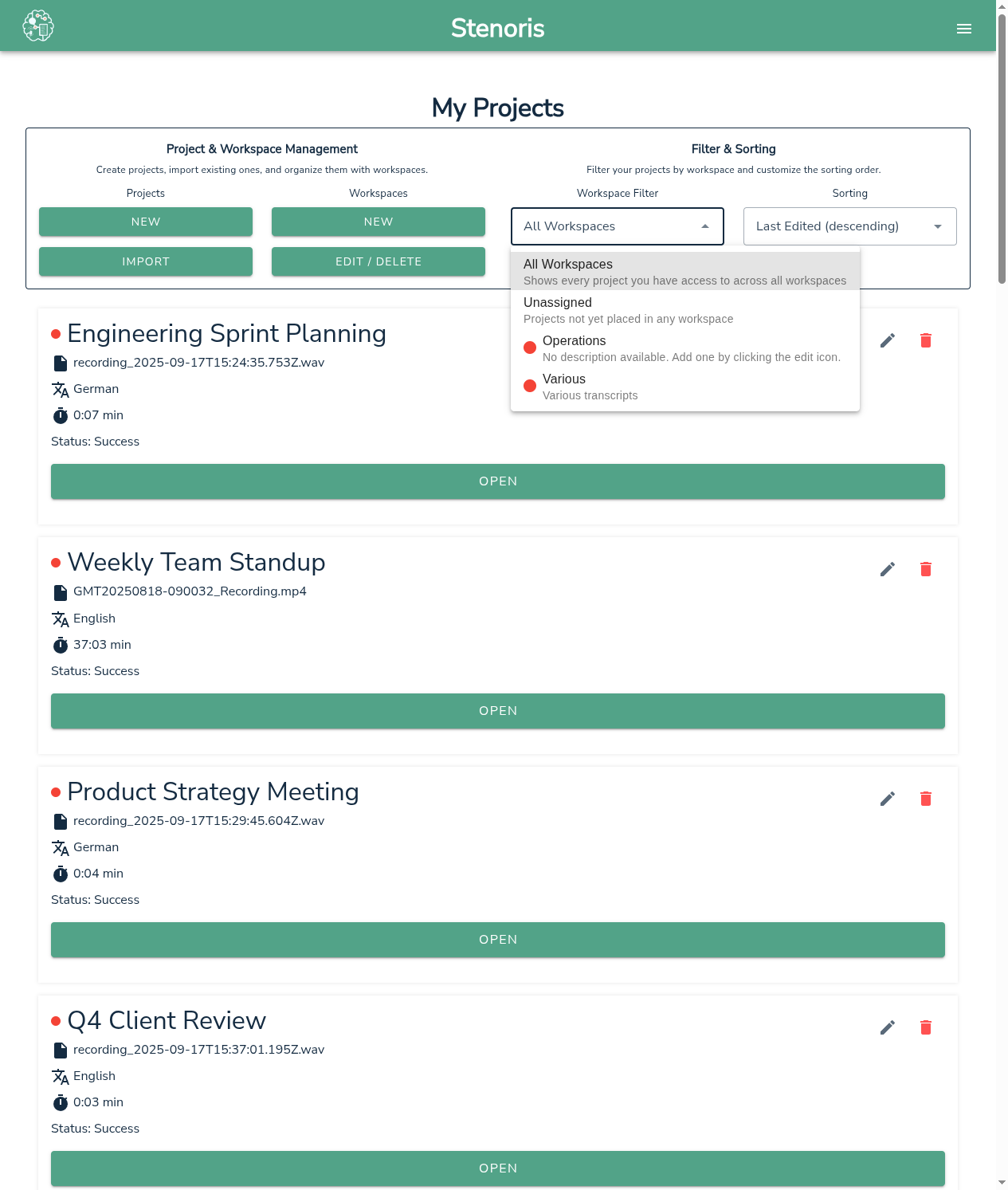
Dashboard Filter
- Click the workspace filter dropdown on the dashboard
- Select a workspace to filter projects
- Select "All Workspaces" to show everything
- Select "Unassigned" to show projects without a workspace
Color Indicators
- Colored dots on project cards
- Workspace badge in project list
Related
- Workspaces Guide - Getting started
- AI Minutes - Using workspace defaults